
How to Create and Access Your Email Accounts
At EasyHost, you can create professional email addresses using your domain (like yourname@yourdomain.com). This guide will show you how to set up new email accounts and access them easily.
Step-by-Step Guide: Create a New Email Account
-
Login to your EasyHost Client Area
Go to EasyHost Client Login and enter your details.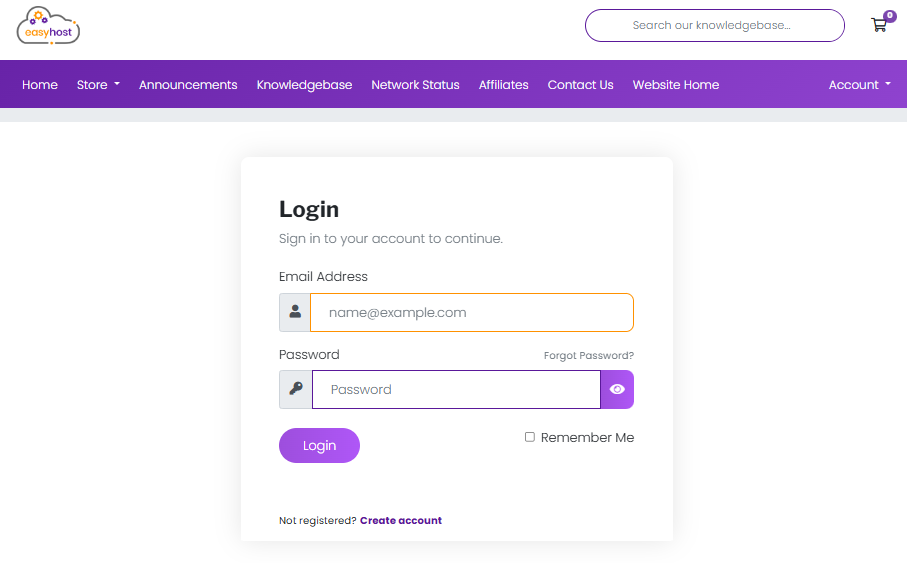
-
Access your hosting service
From the dashboard, click Services and select your shared hosting package.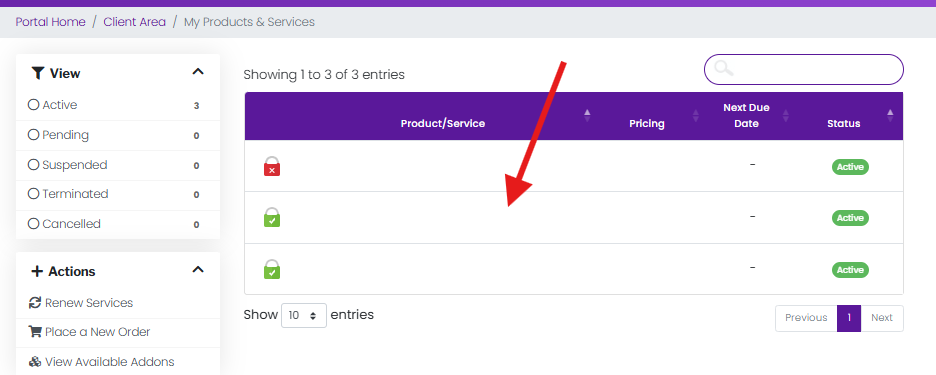
-
Login to cPanel
Click Login to cPanel for your hosting service.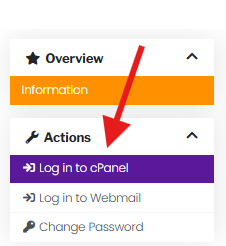
-
Open Email Accounts
In cPanel, scroll to the Email section and click Email Accounts.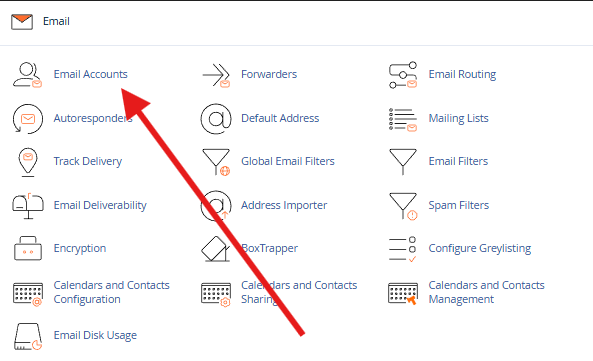
-
Create the account
Click Create or Add Email Account. Enter the email address name, select the domain (if multiple), choose a strong password, and click Create.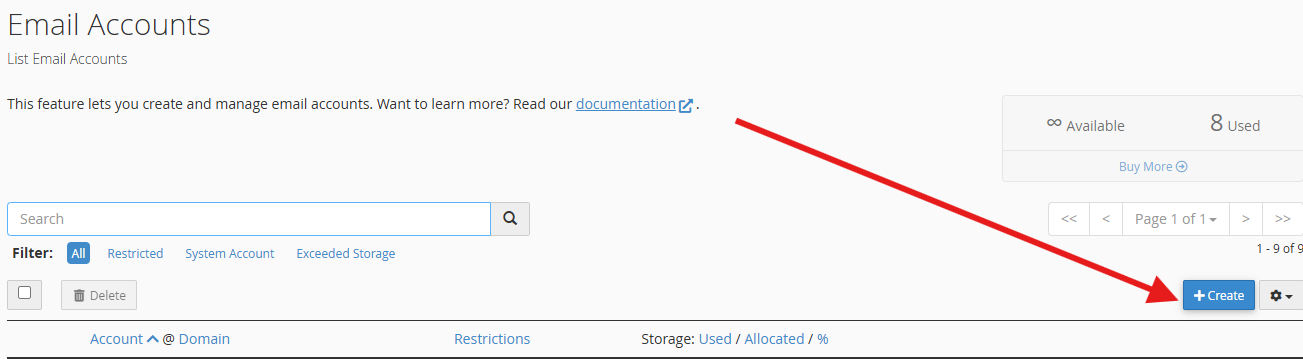
Select your Domain.
Choose your username (emails are always lowercase).
Generate or use a strong password.
Set your storage space (Always keep the combined storage capacity of all email accounts with your hosting account maximum to avoid service outages).
Click on Create to complete the account creation proccess.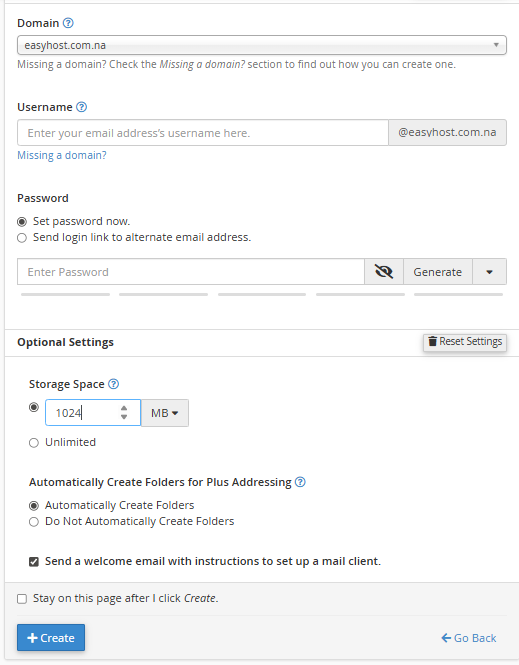
Accessing Your Email Account
-
Login via Webmail
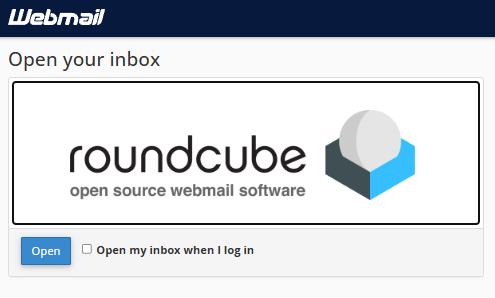
In cPanel, next to your email account, click Check Email. Choose your webmail client (Roundcube) to access your inbox.
-
Login via Email App
You can also use Gmail, Outlook, or any email app. Use your full email address and password to set it up.
In cPanel, next to your email account, click Connect Devices. Here you can find the Mail Client Automatic Configurations Scripts for your email client.
If there is not one listed for your email client, you can using the Mail Client Manual Settings.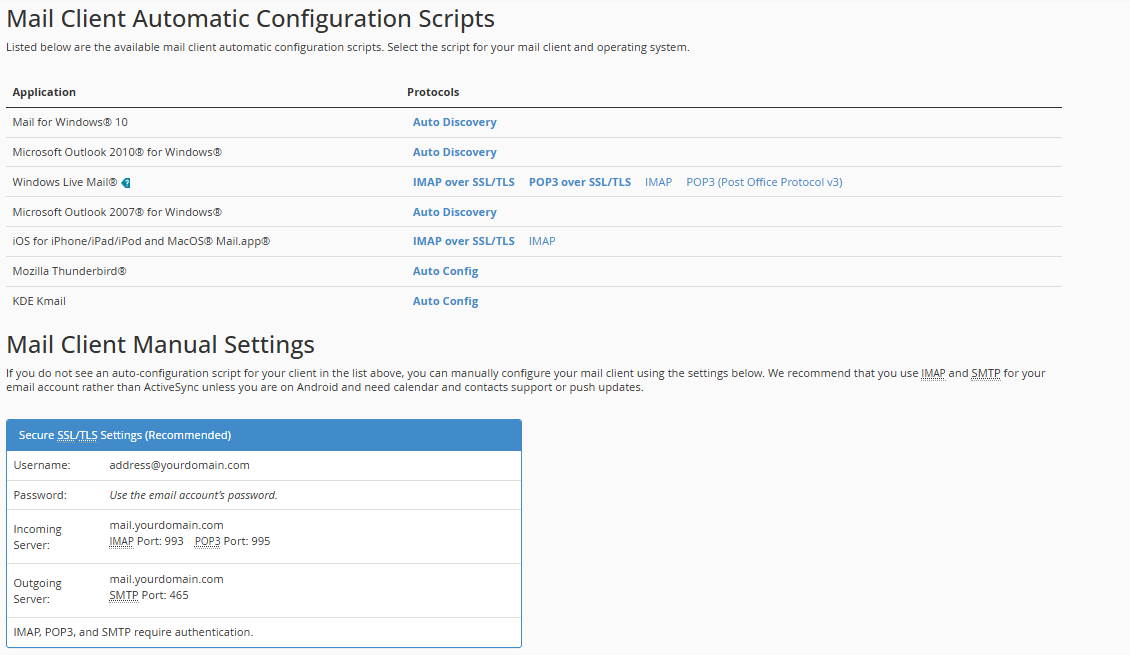
Tips
- Use a strong, unique password for each email account.
- Set up an email app (Gmail, Outlook, or mobile) for easy access on multiple devices.
- Check the cPanel Email Accounts section regularly to manage storage and passwords.
Need Help?
If you have trouble creating or accessing your email account, please open a support ticket and our team will assist you.