
How to Secure Your Website with SSL (HTTPS)
At EasyHost, keeping your website secure is our top priority. One of the simplest ways to boost security and customer trust is by enabling SSL (HTTPS) on your domain. When SSL is active, visitors will see a padlock icon in their browser, reassuring them that your website is safe to use.
The good news? With EasyHost shared hosting, you get free SSL certificates powered by Let’s Encrypt — no extra cost, and it only takes a few clicks.
Step-by-Step Guide: Enable SSL (AutoSSL) with EasyHost
-
Login to your EasyHost Client Area
Go to EasyHost Client Login and enter your details.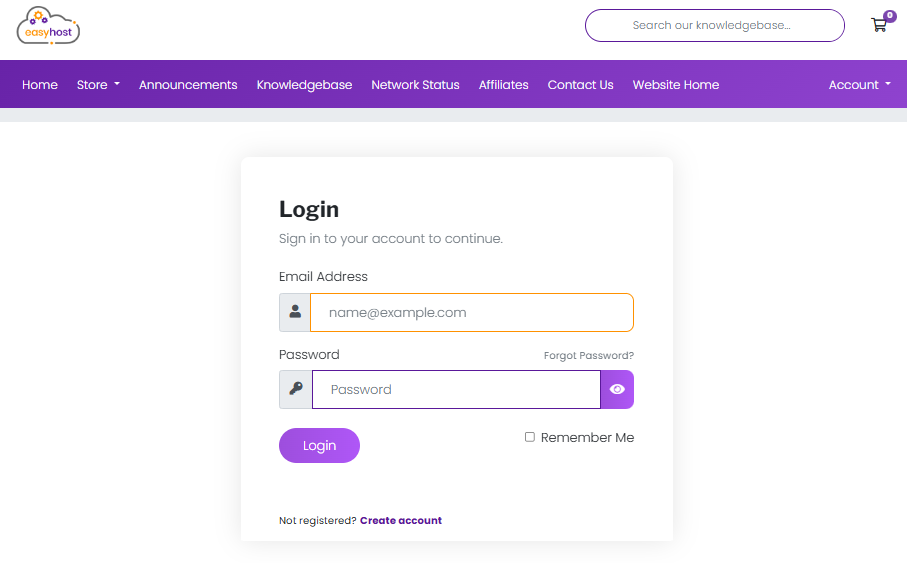
-
Access your hosting service
From the dashboard, click Services and choose the hosting package for your domain. -
Login to cPanel
On your hosting service page, click the Login to cPanel button.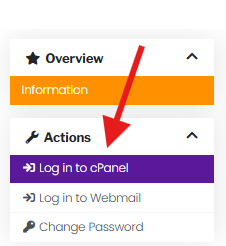
-
Open SSL/TLS Status
In cPanel, scroll down to the Security section and click on SSL/TLS Status.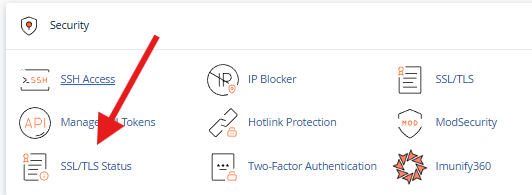
-
Run AutoSSL
On the SSL/TLS Status page, you’ll see a list of your domains. Click Run AutoSSL and wait a few moments while Let’s Encrypt installs the certificate.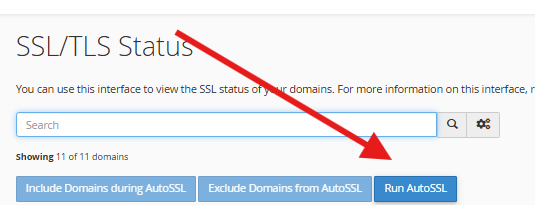
-
Confirm the padlock
Once AutoSSL is complete, visit your website usinghttps://and look for the padlock icon in your browser’s address bar.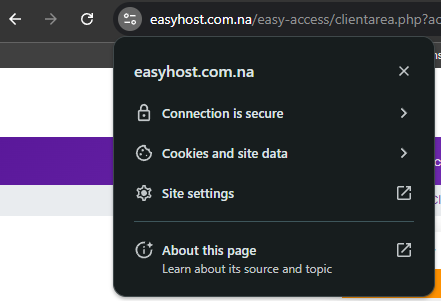
(This example shows the SSL connection in Goole Chrome)
That’s it! Your website is now protected by SSL (HTTPS).
Why SSL Matters
- Trust: Visitors are more likely to stay on your site when they see the padlock.
- Security: SSL encrypts sensitive data (like logins and forms).
- SEO boost: Google favours HTTPS websites in search results.
Tips & Common Issues
Padlock not showing?
- Make sure you typed
https://before your domain. - Clear your browser cache.
- Check if your site uses hardcoded
http://links (like images or scripts).
Certificate didn’t install?
- AutoSSL can take a few minutes to process. Wait 10–15 minutes and refresh.
- Ensure your domain is pointing to EasyHost’s servers (DNS must be correct).
Still stuck?
Open a support ticket, and our team will be happy to help: Submit a Ticket.
✅ With EasyHost’s free Let’s Encrypt SSL, you can keep your website safe and show visitors they can trust you — all in just a few clicks!