
Part 1: Backing Up Your Website
Backing up your website ensures you have a copy of your files and databases in case something goes wrong.
Step-by-Step Guide
-
Log in to your EasyHost Client Area
-
Login to your EasyHost Client Area
Go to EasyHost Client Login and enter your details.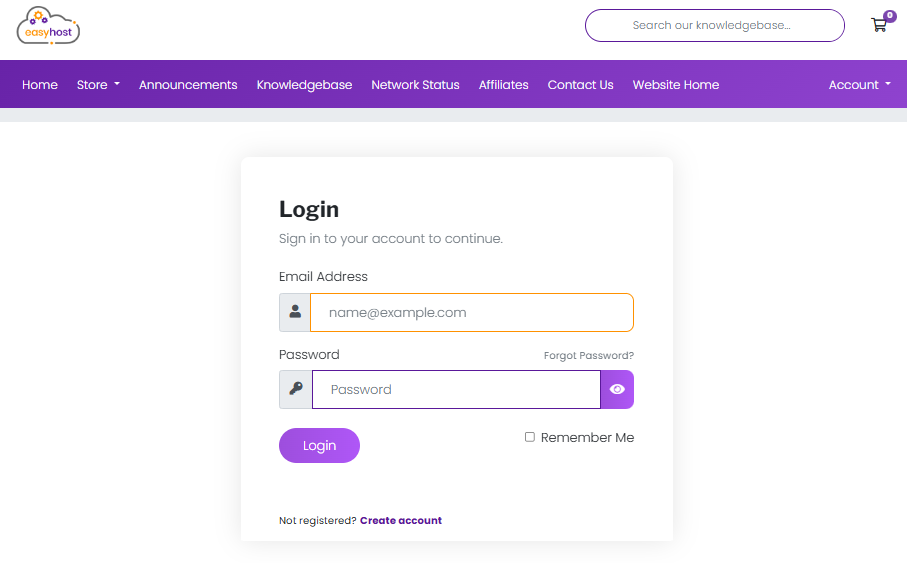
-
Access your hosting service
From the dashboard, click Services and select your shared hosting package.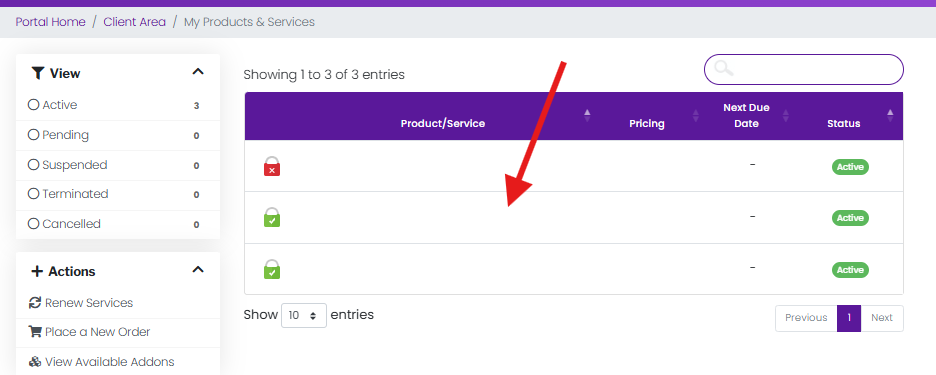
-
Login to cPanel
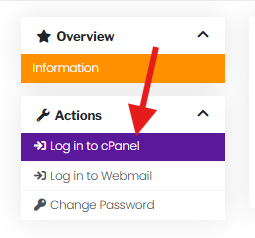
Click Login to cPanel for your hosting service.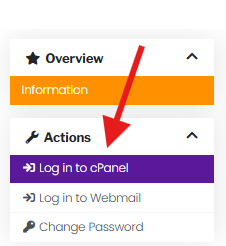
-
Open the Backup Wizard in cPanel
-
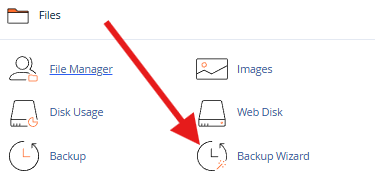
In cPanel, locate the Backup Wizard under the Files section.
-
Click Backup Wizard to start the process.
-
-
Start the Backup
-
Click Backup to begin creating a backup.
-
Choose Full Backup if you want to backup all files, databases, email accounts, and settings.
-
Tip: Full backups are safest, but they can be larger in size.
-
-
Select Backup Destination
-
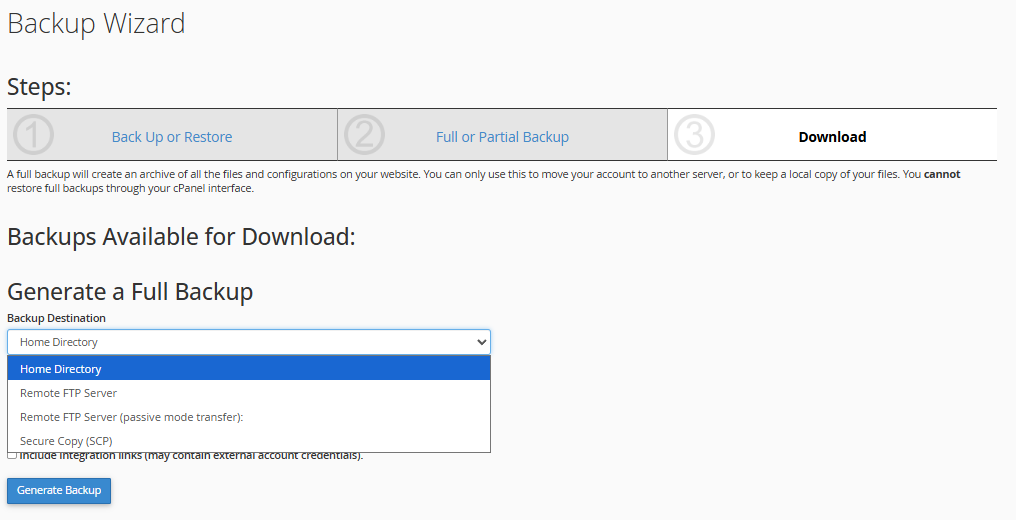
Choose Home Directory as the backup destination.
-
Enter your email if you want to be notified when the backup is complete.
-
Click Generate Backup.
-
-
Download the Backup
-
Once the backup is complete, you will see a downloadable link.
-
Click Download to save the backup to your computer.
-
Tip: Store backups in a safe place, like an external drive or cloud storage.
-
-
Part 2: Restoring Your Website
Restoring a backup will revert your website to the state it was in when the backup was made.
Step-by-Step Guide
-
Access cPanel via Client Area
-
Follow the same steps as above to log in to your cPanel through the EasyHost client area.
-
-
Open the Backup Wizard
-
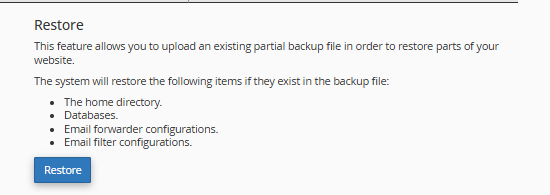
In cPanel, go to Backup Wizard → Restore.
-
-
Select What to Restore
-
Choose Full Backup to restore your entire website, or select Home Directory, MySQL Databases, or Email Forwarders & Filters if restoring parts.
-
Tip: Only restore what is necessary to avoid overwriting files you don’t want to lose.
-
-
Upload Your Backup
-
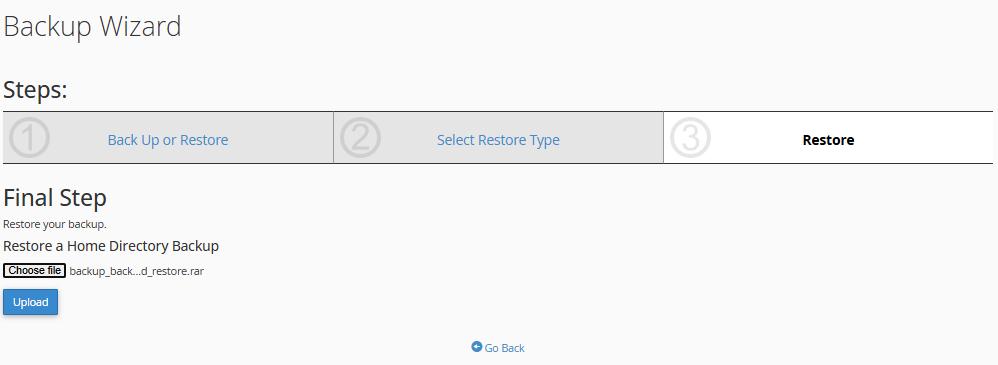
Click Choose File and select the backup file you downloaded earlier.
-
Click Upload to start restoring.
-
-
-
Wait for Completion
-
The restore process may take some time depending on the size of your backup.
-
Once complete, your website will be restored to the selected backup state.
-
Tip: After restoring, check your website to make sure everything looks correct.
-
Tips & Common Issues
-
Backup Frequency: It’s recommended to create backups weekly, or before making major changes to your website.
-
Storage Space: Full backups can be large. If your hosting account has limited space, consider downloading backups to your local computer.
-
Failed Backup/Restore: If the process fails, check that the backup file isn’t corrupted and that your internet connection is stable.
-
Partial Restores: If only a database or specific folder needs restoration, use the selective restore option instead of a full restore.
-
Email Notifications: Enable email notifications to know when a backup completes successfully.