
How to Reset Your Hosting or Email Passwords
At EasyHost, we understand that passwords can be forgotten or lost. Don’t worry — resetting them is quick and simple. This guide will show you how to reset both your hosting (cPanel) password and your email account passwords.
Flow 1: Reset Your Hosting (cPanel) Password
-
Login to your EasyHost Client Area
Go to EasyHost Client Login and enter your details.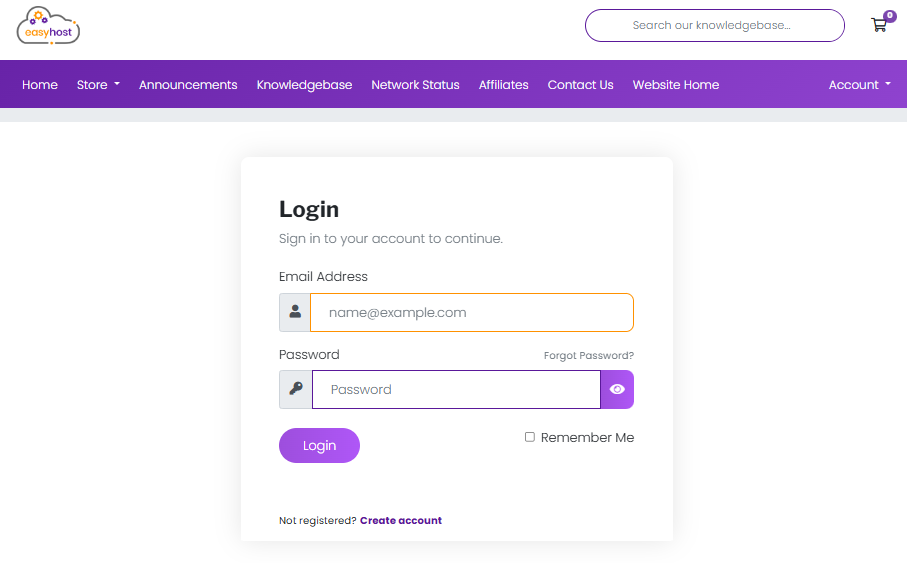
-
Access your hosting service
From the dashboard, click Services and select your hosting package.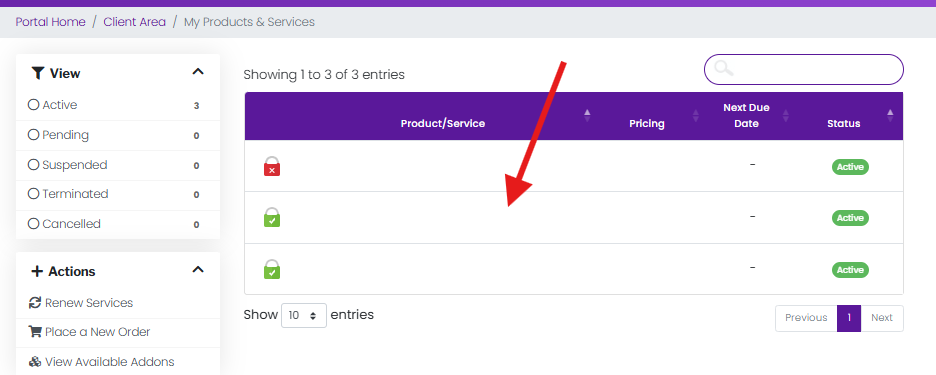
-
Find the Change Password option
On the hosting service page, click Change Password from the menu.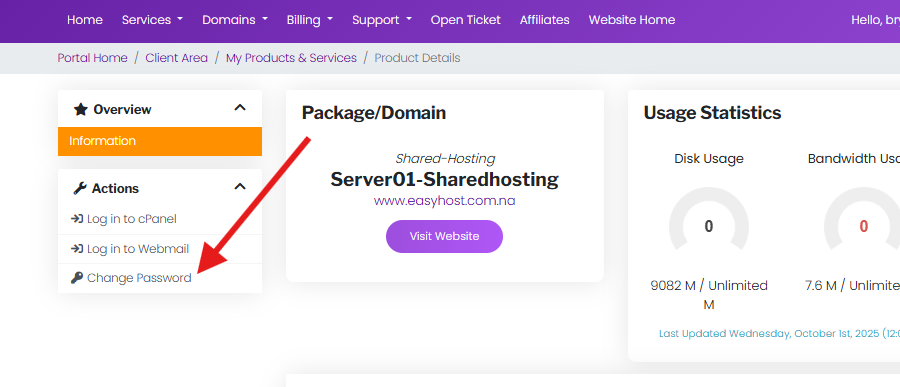
-
Enter your new password
Type a strong new password and confirm it. Click Save Changes.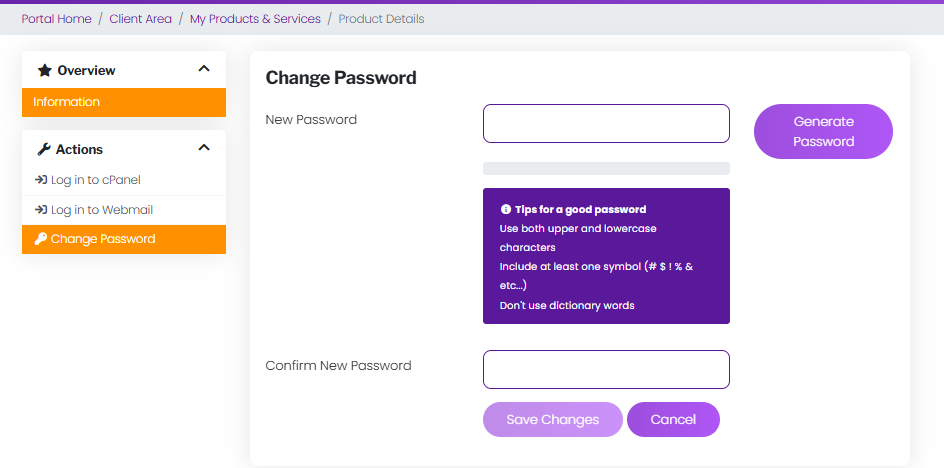
That’s it! You can now log into cPanel with your new hosting password.
Flow 2: Reset Your Email Account Password
-
Login to cPanel
From your EasyHost client area, click Login to cPanel for your hosting service.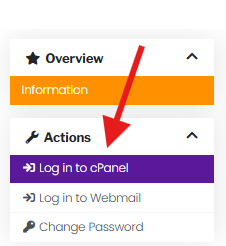
-
Go to Email Accounts
In cPanel, scroll to the Email section and click Email Accounts.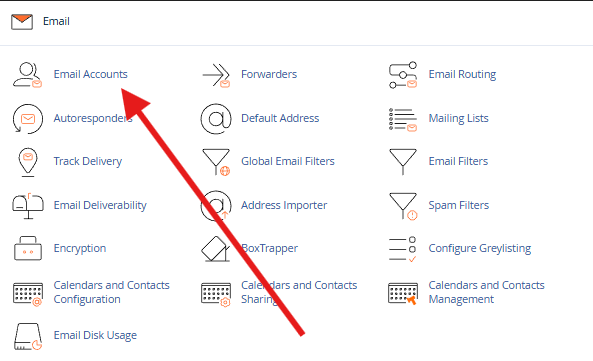
-
Manage the email account
Find the email address you want to reset and click Manage.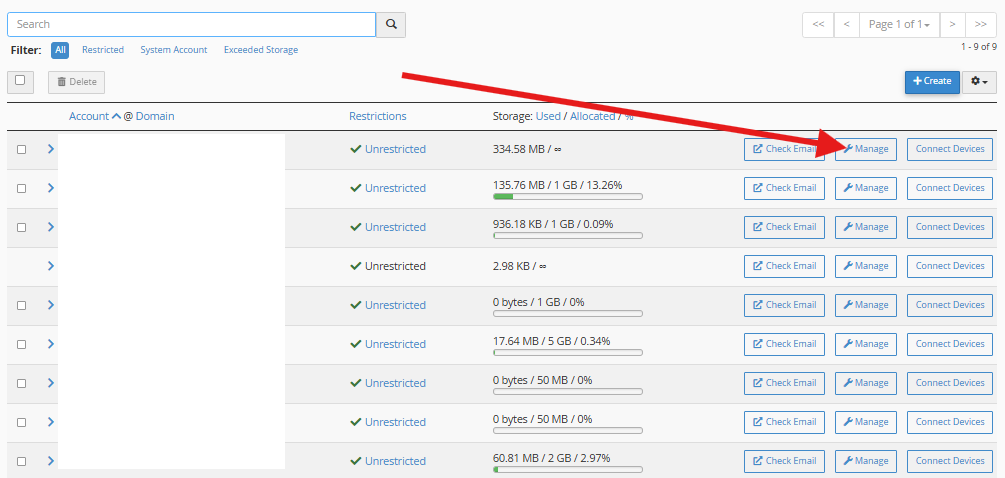
-
Set a new password
Enter your new password in the New Password field or click Generate, then click Update Email Settings.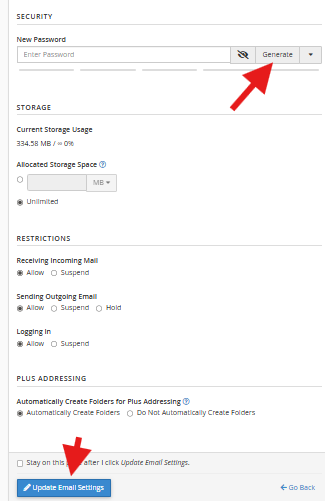
That’s it! You can now log into your email with the new password.
Tips & Common Issues
Choosing a strong password:
- Use a mix of uppercase, lowercase, numbers, and symbols.
- Avoid using the same password for multiple accounts.
Forgot your EasyHost client area password?
- Use the Forgot Password link on the login page to reset it.
Still stuck?
Open a support ticket, and our team will be happy to help: Submit a Ticket.
✅ With EasyHost, resetting your hosting or email password is quick and simple — so you can get back online without stress.